Incorporating custom tracks into Assetto Corsa expands the racing experience with diverse and unique locations. These user-created tracks provide new challenges and excitement, offering various options beyond the base game. From real-world circuits to imaginative creations, custom tracks cater to multiple racing styles and preferences, fostering community engagement and ensuring a constant flow of fresh content.
Note: The Assetto Corsa server web panel or FTP Client must be set up on the server.
Note: Players must match the mods on the server.
How to Add Custom Tracks on an Assetto Corsa Server. (Web Panel) - (Server)
-
Login to the VolticHost Game Panel.
-
Stop the server.

-
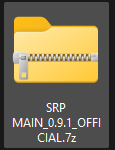
Download a custom track. In this tutorial we will be using Shutoko Revival Project.
-
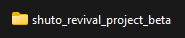
Extract the compressed file to a folder.
-
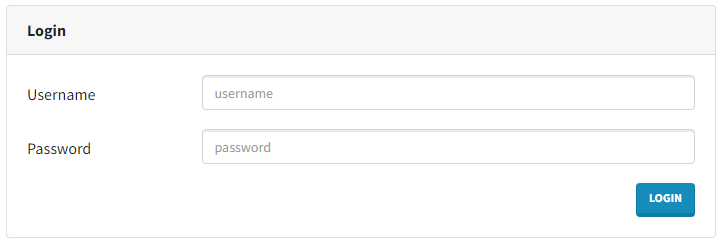
Log in to the Assetto Corsa server web panel.
-
Under Content, select Tracks.

-
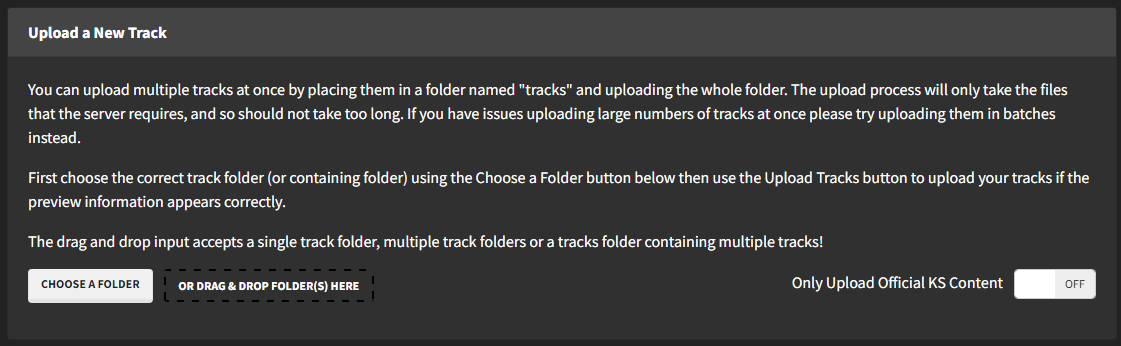
Drag and drop or choose the folder from step 3.
-
Click UPLOAD TRACK(S).

-
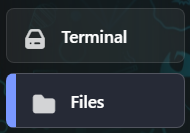
In the VolticHost Game Panel, select Files on the left.
-
Find the following directory: /home/container/cfg/server_cfg.ini

-
On the Track and Config_Track line type the name of the track folder and sub folder if it has one.

-
Start the server.

How to Add Custom Tracks on an Assetto Corsa (FTP Manual) - (Server)
-
Login to the VolticHost Game Panel.
-
Stop the server.

-
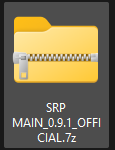
Download a custom track. In this tutorial we will be using Shutoko Revival Project.
-
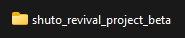
Extract the compressed file to a folder.
-
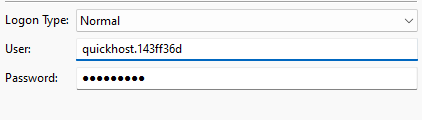
Login to the Assetto Corsa FTP Client.
-
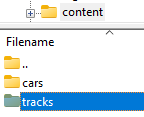
Under Content, select Tracks.
-
Drag and drop the folder from step 3.
-
Wait for the files to transfer.
-
In the VolticHost Game Panel, select Files on the left.
-
Find the following directory: /home/container/cfg/server_cfg.ini

-
On the Track and Config_Track line type the name of the track folder and sub folder if it has one.

-
Start the server.

How to Add Custom Tracks on an Assetto Corsa Client. (Content Manager) - (Client)
-
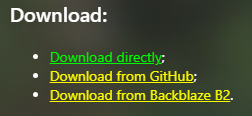
Download Content Manager here.
-
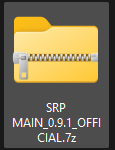
Download a custom track.
-
Extract the
.zipfile to a folder.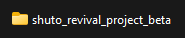
-
Run Content Manager.
-
The app should automatically detect the Assetto Corsa Steam directory, Steam ID, and name.
If not, hit Change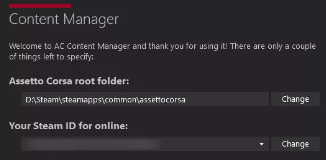
-
Optional: Select Create (recommended) to add a shortcut to the Start Menu.

-
Click Install on each plugin, then press OK.
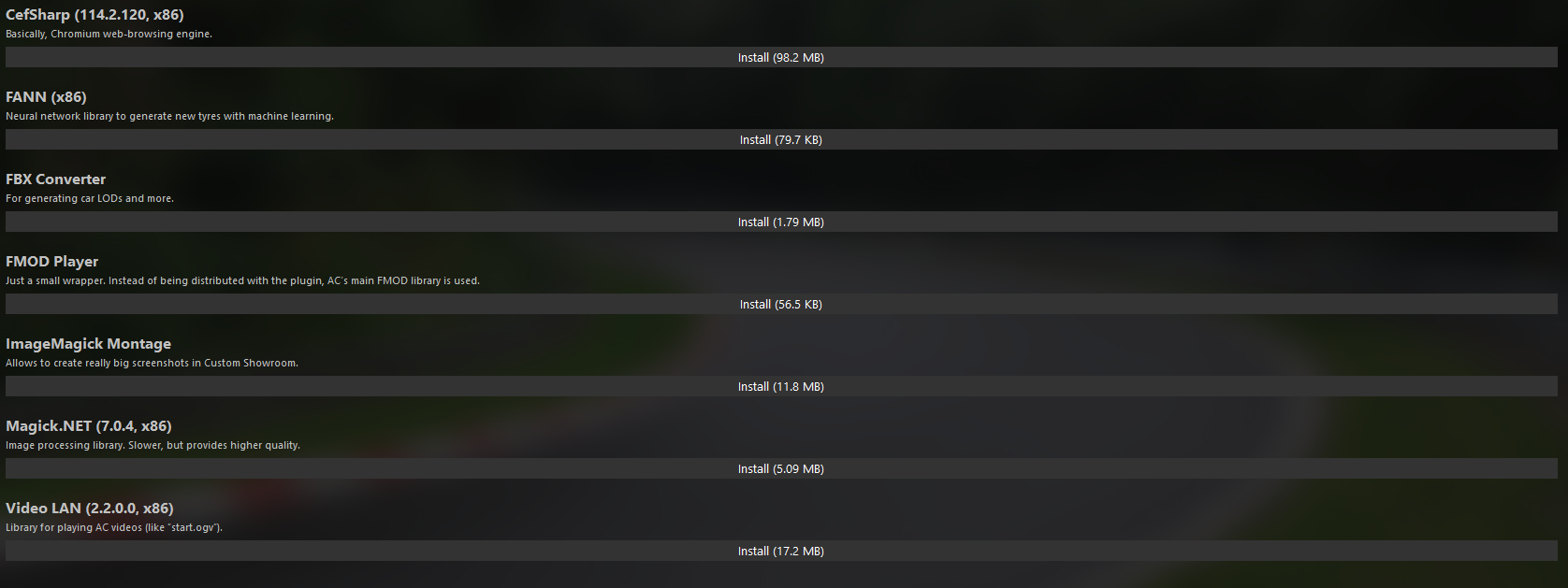
-
Go to the Settings tab.

-
Select Custom Shaders Patch.

-
Hit Install.

-
Drag and drop the compressed file from step 2 into Content Manager.
-
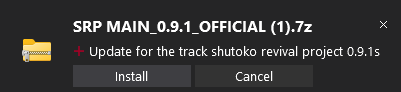
Select the download symbol on the upper right.
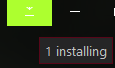
-
Click Install.
-
Launch Assetto Corsa.
How to Add Custom Tracks on Assetto Corsa (Manual) - (Client)
-
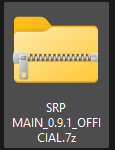
Download a custom track.
-
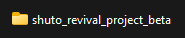
Extract the compressed file to a folder.
-
Minimize the folder to use later in the tutorial.
-
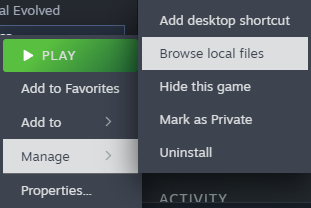
Right-click Assetto Corsa on Steam, hover Manage, and select Browse Local Files.
-
Find the following directory:
Steam\steamapps\common\assettocorsa\content\tracks.
-
Drag and drop the folder from step 3.
-
Launch Assetto Corsa.