Minecraft server icons help to add character and customization to a server; all server icons are displayed to users through the server browser screen, making the server icon an excellent opportunity to make a lasting impression. Server icons must be a specific size before being set, which can be done using any image editing tool such as Microsoft Paint.
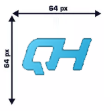
Note: Server icons must be 64x64 pixels and saved as a PNG file.
How to Add a Server Icon on a Minecraft Server
-
Prepare the desired server icon image by ensuring the dimensions are 64x64.
-
Rename the image to
server-icon.png.
-
Login to the VolticHost Game Panel.
-
Stop the server.

-
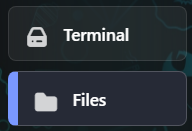
On the left select Files.
-
Upload the
.pngfile from step 2.
-
Start the server.

How to Resize a Server Icon for a Minecraft Server
-
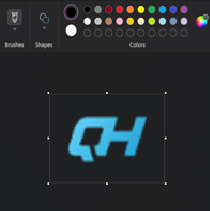
Open the server icon image in Paint.
-
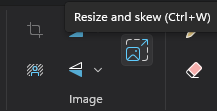
On the top left in the image section, select resize.
-
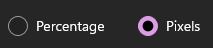
Choose the Pixels option.
-
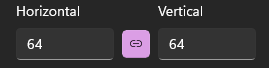
On both Horizontal and Vertical fields, input
64.
-
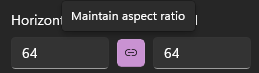
If the pixel sizes do not match, click Maintain aspect ratio.
-
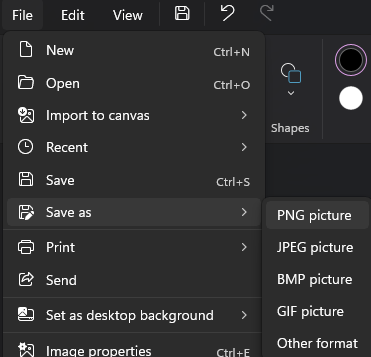
From the top-left, go to File > Save as > PNG picture.
-
Change the File Name to
server-iconand hit Save.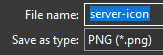
-
Follow the steps above to then upload it.